Follow these steps to edit an alert policy exception using the Web UI.
Prerequisites
Admin or Operator access to the appliance.
Choose Settings > Alert Policy Exceptions.
For the exception you want to edit, click the operations icon (
 ) and choose Edit.
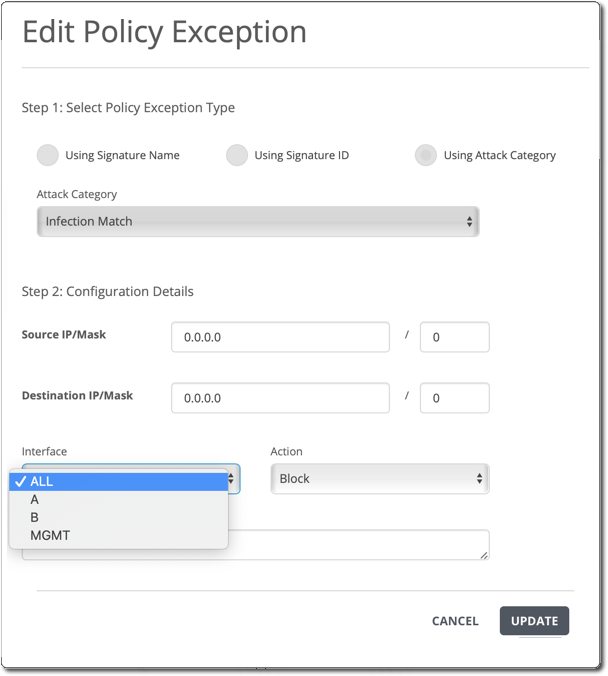
(Optional) Specify a different source, destination, or both:
To change the source machine or subnet, use the Source IP/Mask field.
Leave the field empty to match any source address.
To change the destination machine or subnet, use the Destination IP/Mask field.
Leave the field empty to match any destination address.
(Optional) Use the Interface drop-down to specify a different monitoring interface: all monitoring port pairs, a single monitoring port pair, or the management interface.
(Optional) Use the Action drop-down to specify a different override action.
For more information, see Alert policy exception actions.
(Optional) Change the note attached to the policy exception.
Click Save.