Follow this procedure to configure an existing device for offline signature set update:
Task
-
Go to
Devices → <Admin Domain Name> → Global → Device Manager.
The Device Manager page is displayed.
- Select the Sensors tab to view the list of devices configured.
-
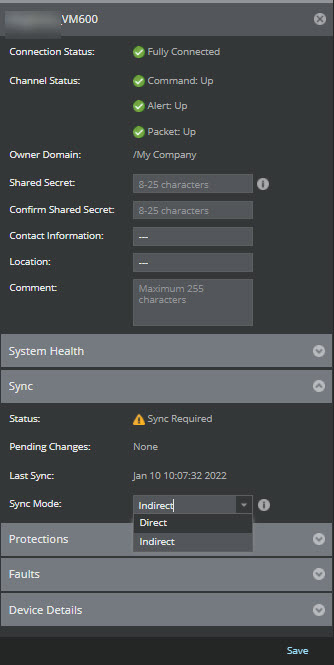
Double click on the required Sensor. The
<Device Name> details panel is displayed.
-
Scroll to the
Sync section. Select
Indirect against
Sync Mode drop-down and click
Save.
Note
You can also change the configured mode in Summary page. For standalone Sensors, go to Devices → <Admin Domain Name> → Devices → <Device Name> → Summary. For Sensors in Stack, go to Devices → <Admin Domain Name> → Devices → <Device Name> → Member Sensors → Stackname-node id → Summary. In the Summary page, go to Sync monitor and select Indirect against Sync Mode drop-down and click Save.
- An information box confirms a successful edit. The device is configured for Indirect updates.