To enable or disable HelixConnect via the Network Security Web UI:
Log in to the Network Security Web UI.
Select Settings > Helix Enterprise Integration.
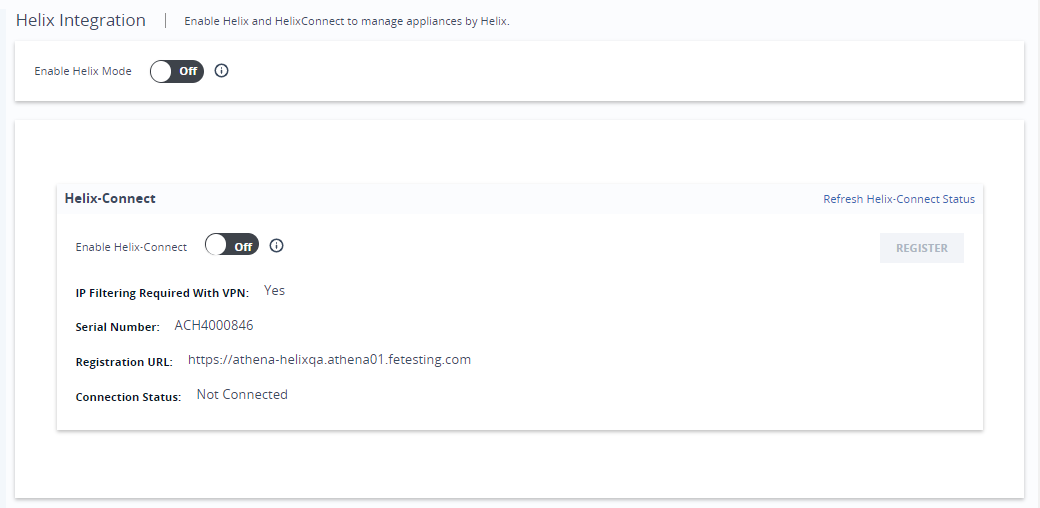
If Helix Enterprise on-premises mode is not enabled, use the On/Off toggle to enable it.
When the Helix Enterprise mode is enabled, the VPN Host Name and Certificate fields show the existing values. These fields are not editable.
In the lower section, using the On/Off toggle button to enable HelixConnect.
If you disable HelixConnect, a message will appear requesting confirmation for disabling HelixConnect client.
You can click the Register button to re-register HelixConnect tunnel.
Click Refresh HelixConnect Status button to view the latest connection status of HelixConnect.
When you disable HelixConnect, it closes the VPN connection and disconnects your appliance from the Helix Enterprise cloud. It also removes files created to support the integration process.