IPS detection of brute-force attacks is enabled by default. If you want to disable brute-force detection, the feature is not disabled globally. Instead, you can disable the brute-force detection rules for an IPS policy. Edit the custom IPS policy and disable all IPS rules that detect brute-force attacks.
Prerequisites
Log in to the Web UI of the IPS appliance as Operator or Admin.
Choose a custom IPS policy to use. If you need to configure a new policy for this purpose, use one of the following topics:
(Recommended) If the policy you want to edit is applied to appliance monitoring interfaces, remove the policy from the interfaces.
Procedure
To disable detection of brute-force attacks:
Choose IPS > Configure.
Find the IPS policy for which you want to disable brute-force attacks.
Go to the Actions column and click Edit or Clone & Edit.
Click the search icon (
 ) in the Category heading.
In the text box below the Category heading, type
bruteand then press Enter.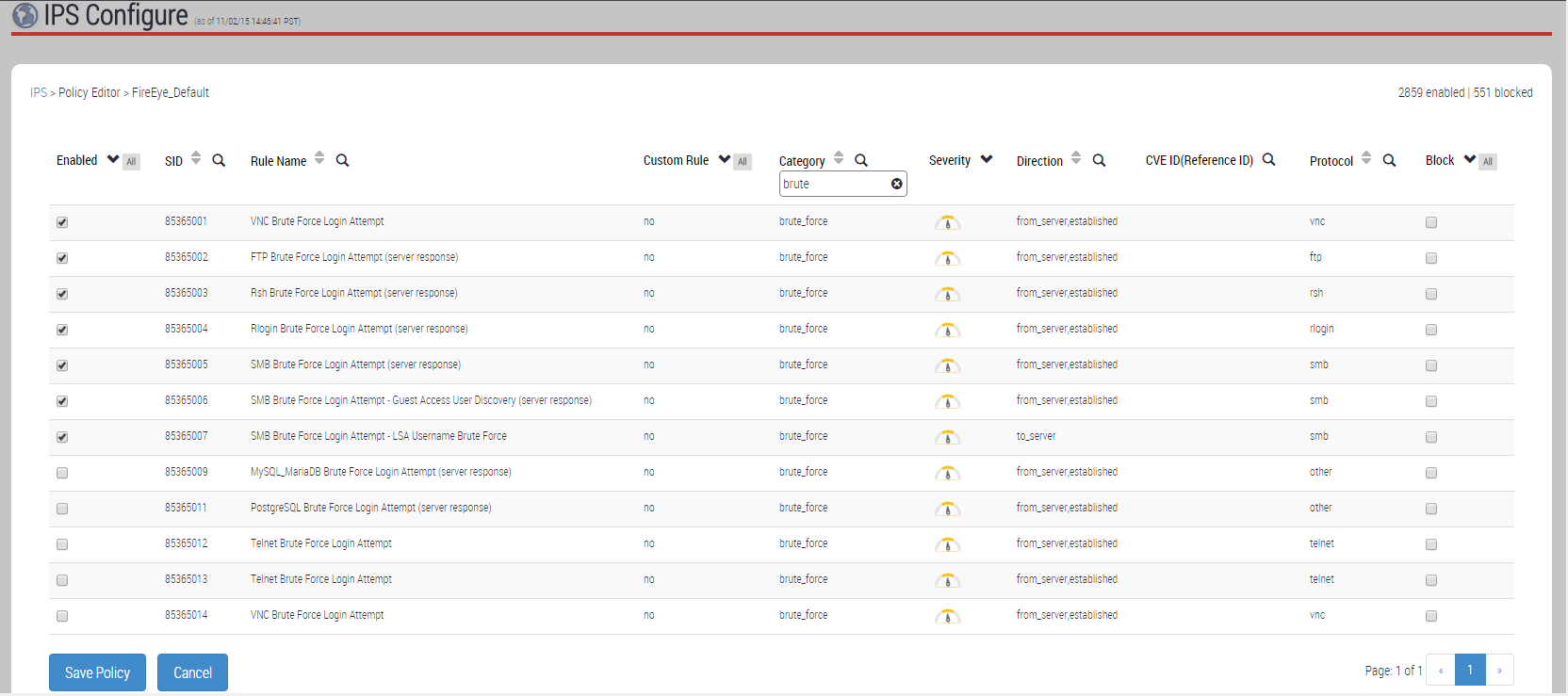
Use the check boxes (
 ) in the Enabled column to specify which IPS brute-force rules are enforced.
Clear all options to disable the rules.
Select all options to enable the rules.
Select only the options for IPS brute-force rules you want to apply.
Click Save Policy.
If the New Policy Name window appears, enter a name for the new policy and then click Save Policy.
Select the monitoring interface to which you want to apply the policy.
Click Apply.