You can suppress an IPS brute-force rule.
Prerequisites
Log in to the Web UI of the IPS appliance as Analyst or Admin.
Procedure
To suppress an IPS rule for brute-force attacks:
Choose IPS > IPS Events.
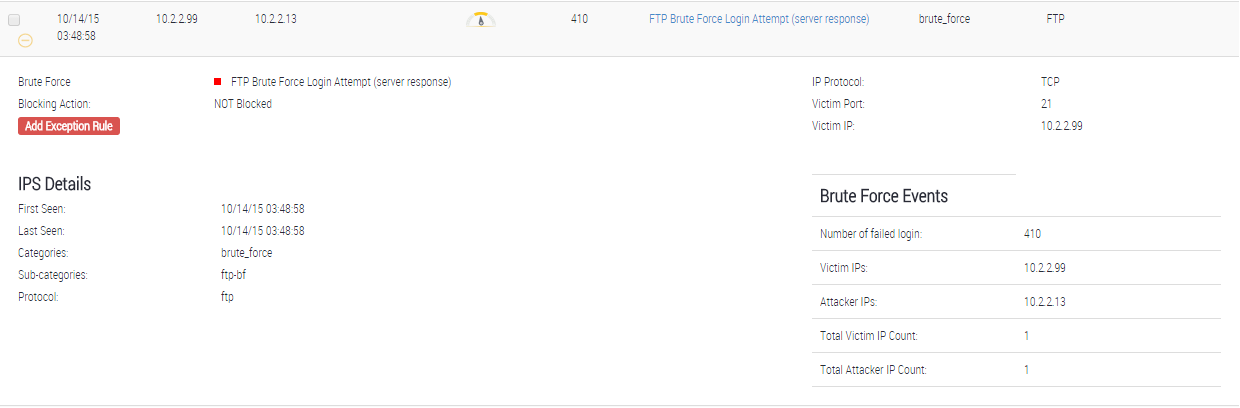
Locate the brute-force event entry type to suppress. See Showing or hiding or brute-force events (Web UI).
Make note of the name of the IPS rule that detected these brute-force events. The rule name is displayed in the Rule field.
Click the plus icon (
 ) in the left column of that row to open the drill-down view.
Click Add Exception Rule. Use the Adding a Signature Exception wizard to guide you through the steps to suppress a vulnerability or IPS rule from a particular IP address.
In the Signature step of the wizard, select the suppression at a per-rule level or at a per-vulnerability level. Choose Signature Id, Signature Name, or Signature Id & Name. Click Next or Interface.
In the Interface step of the wizard, select ALL Interfaces. Click Next or Victim IP.
In the Victim IP step of the wizard, verify the particular destination (victim) IP address and the subnet mask. Click Next or Attacker IP and Action.
In the Attacker IP and Action step of the wizard, verify the particular source (attacker) IP address and the subnet mask. Choose the action Suppress.
Click Save.