If you want to export the hashes, you can go to the appropriate tab and click Export Allowed or Export Block List. The exported CSV file contains either allowed or blocked hashes based on the tab from where it is exported. You can use the exported file as source of import in another Manager.
Note
Currently, export of only CSV files is supported.
Task
-
Select
Policy → <Admin Domain Node> → Intrusion Prevention → Exceptions → File Hashes.
The Allowed and Blocked Hashes tabs are displayed.
Note
You can also go to the File Hashes page by clicking the Manage allow and block lists link from the Malware Files page or the Endpoint Executables page.
- Depending on the type of hashes you want to export, select the Allowed Hashes or the Blocked Hashes tab.
-
Click
Export Allowed or
Export Block List.
The File Download page is displayed.
Exporting hashes 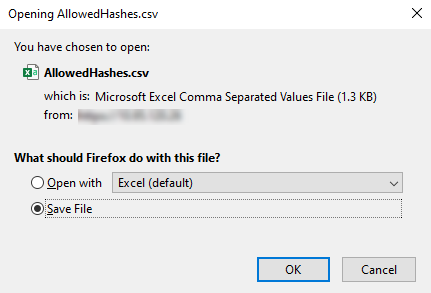
-
Click
Open or
Save.
The exported CSV file will contain the file name, file size, hash function (MD5), file hash, and description.
Note
If you attempt exporting policies using Internet Explorer 10 in combination with Windows Server 2012, the Manager will generate the “Export of custom policy error”. To avoid this, go to Control Panel → Add or Remove Programs → Add/ Remove Windows Components, the Windows Components Wizard window opens, select the Internet Explorer Enhanced Security Configuration and disable it. For more information on the fault, see the Trellix Intrusion Prevention System Product Guide.