The configuration settings that affect detection must be identical for the two Network Security appliances in a Network Security HA pair, because each appliance must assume the detection functions of its peer if the peer fails.
The Central Management System appliance warns you when the following settings do not match, and provides a way to synchronize the settings of one appliance with the other appliance:
Date and Time
Important
You can use the procedures in this section to synchronize NTP servers and the time zone. However, if the system time on the two appliances differs by more than 30 seconds, a status message will be displayed, and you must synchronize the time manually. You can change the system time on one appliance to match its peer, set the time in the Central Management System Web UI in the context of the pair, or enable NTP on the pair.
Email
DTI Network
Inline Operational Modes
Inline Policy Exceptions
Whitelists
IPS Policy and Policy Exceptions
Note
To successfully synchronize IPS settings, both appliances must have a valid IPS license.
Network IP Address Whitelists
Login Banner
Static Analysis tool settings, such as AV-Suite integration, AV-Check, YARA configuration, and dropper detection
Note
To successfully synchronize AV-Check settings, both appliances must have a valid AV_ENGINE_SOPHOS license.
The Central Management System Web UI prevents you from making configuration changes in the wrong context. If the setting must be made on the pair, you cannot select the individual appliances from the appliance drop-down list. If the setting must be made on the individual appliance, you cannot select the pair.
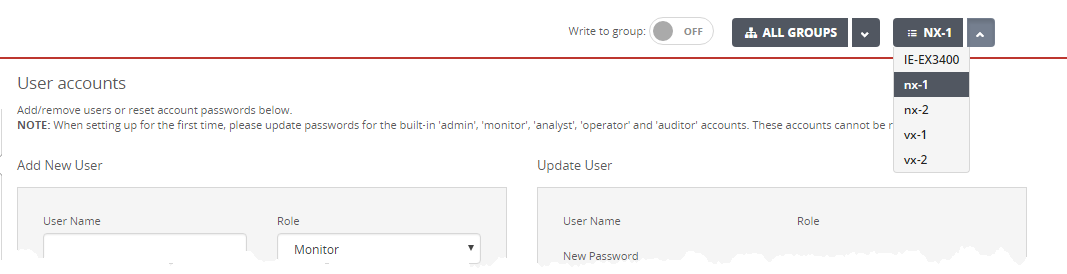
In the following examples, the pair name is Acme_NXHA, and the appliance names are nx-1 and nx-2. The individual appliance names are not available in the list for the DTI Network Settings page, and the pair name is not available on the User accounts page.
|
|

Important
The following settings must match, but the Central Management System appliance does not warn you if they are out-of-sync. You must check the settings on each appliance, and manually synchronize them if necessary.
YARA Rules
Custom Rules ( Network Security and IPS)
Custom MD5 Whitelists
Custom MD5 Blacklists
Custom Greylists
Configuration mismatches
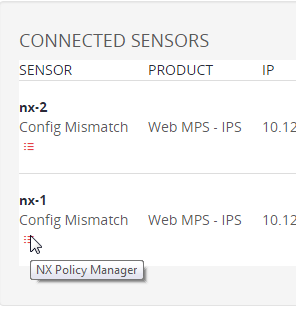
As described in Configuration replication, these settings might be different. When this happens, a message is displayed in the Central Management System Web UI and on each page with settings that must be configured in the context of a pair. The Appliances > Sensors page provides sync controls and tooltips that display the mismatched settings when you hover your cursor over them. Examples of these messages follow.
Web UI Example

Appliances page examples

The following sections describe how to use the Central Management System appliance to synchronize the configuration of one Network Security appliance to the peer appliance.
Note
Other items, such as the appliance model, software image, guest images, security content, detection-related feature licenses, and Network Security edition must also be identical. See System requirements and Viewing the Network Security HA status for more information.
Prerequisites
Operator or Admin access