You can upload multiple custom IPS rules to your IPS-enabled platform from a single ASCII text file or a .csv file. To upload custom IPS rules from a file, use the Custom Rules page. When you upload a file of custom IPS rules, the system adds the new rules to the appliance IPS rules database. The database stores both standard IPS rules (provided by Trellix) and any custom IPS rules that you create.
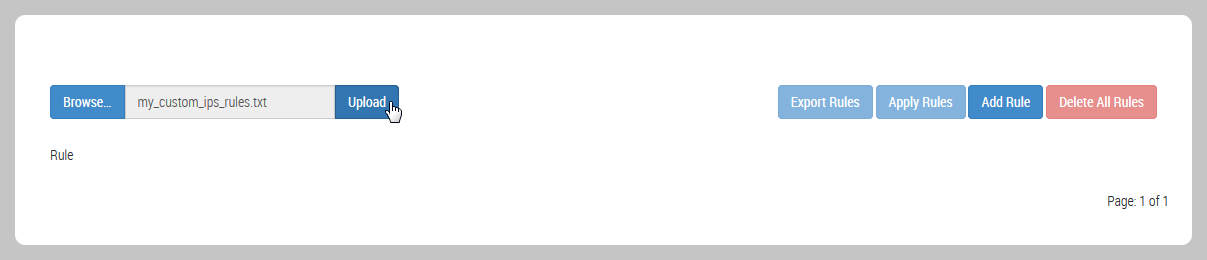
In the following example of the IPS Custom Rules page, the appliance IPS rules database does not yet contain custom IPS rules.
Important
If you add a custom IPS rule with a signature ID that is also used by a custom IPS rule already in the database, the new rule overwrites the existing rule.
If an IPS policy that includes a new or changed rule is already active on a monitoring interface, the rule does not go into effect on that interface until you click and confirm Apply Rules.
Note
The file you upload does not need to include all custom rules that you want to retain in the rules database. In contrast, for software releases earlier than 7.7.0, you would delete custom IPS rules by uploading a rules file that did not include the rules you wanted to remove.
Prerequisites
An ASCII text file or a .csv file that contains custom IPS rules is accessible from the local desktop from which you access the Web UI of the IPS-enabled platform. For information about the format of a custom IPS rules file, see Syntax for custom IPS rules.
Log in to the Web UI as Operator or Admin.
Procedure
To upload custom IPS rules from an ASCII or a .csv file to the IPS rules database on your appliance:
Choose IPS > Custom Rules.
The page lists the custom IPS rules in the appliance IPS rules database.
Click Browse.

Select the custom IPS rules file you want to import.
Click Choose File and navigate to the CSV file you want to upload. Click Upload to upload the custom IPS rules.
Check the rule syntax.
The system checks the syntax of the rules in the file and then saves the validated rules to its database of IPS rules. The following message appears:

If a rule in the file contains syntax errors, it is not saved to the database of IPS rules. A warning message appears below the rule:

To edit the rule, click the edit (blue pencil) icon, fix the error, and then click Save. For syntax information, see Syntax for Custom IPS Rules.
If the custom IPS rules file is empty, the following message appears:

Close the green message bar.
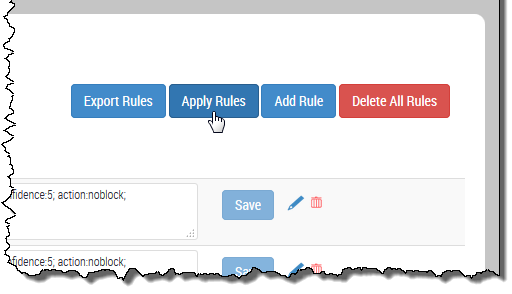
When you are ready to apply the updated list of custom IPS rules, click Apply Rules.
Note
Trellix recommends that you click Apply Rules immediately after the rules have been saved to the database.
Click OK.
The IPS-enabled rules engine re-evaluates active IPS policies against the updated database of IPS rules. The following message appears:

Close the green message bar.