Use the Custom Rules page to upload a custom rule file to the appliance or sensor.
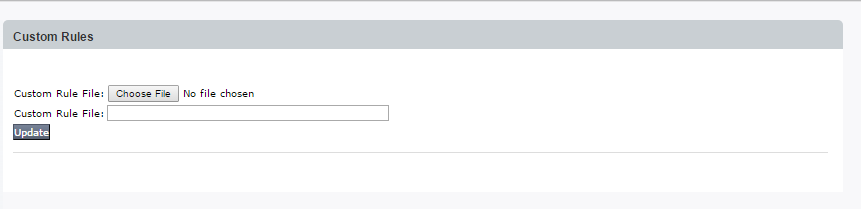
Each time a new file containing custom rules is uploaded, all previous rules are overwritten. For information about custom rule file usage, requirements, and the keywords supported by the Network Security, see Creating custom rule limitations.
To see the results of new custom rules, provide unique names, such as CompanyX.Zbot. This name or a portion of it can be used to filter the hits your appliance or sensor is detecting. At the Alerts or Summaries tab Search box, enter your filter term (for example, CompanyX).
To upload a custom rule file:
In the Web UI, choose Settings > Custom Rules.
To select a local custom rule file, click Choose File.
File names can include the following characters: letters (a-z, A-Z), numbers (0-9), underscores (_), periods (.), plus and minus signs (+, -), single quotes (‘), and left and right parentheses. Any other characters are replaced with the minus (-) sign. For example, if the name of the file you upload is
hello%hello.doc, then it will be renamed and stored on the appliance or sensor ashello-hello.doc.(Optional) In the Description field, enter a text description.
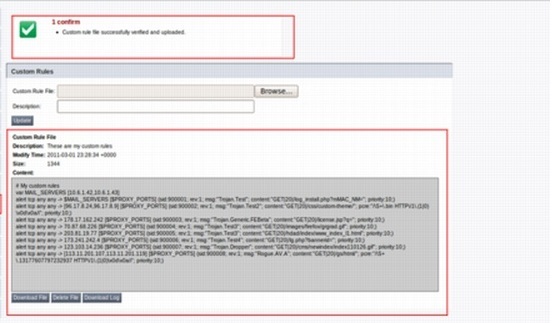
To upload and activate the rule file, click Update.
The rules are activated and displayed on the Custom Rules page.
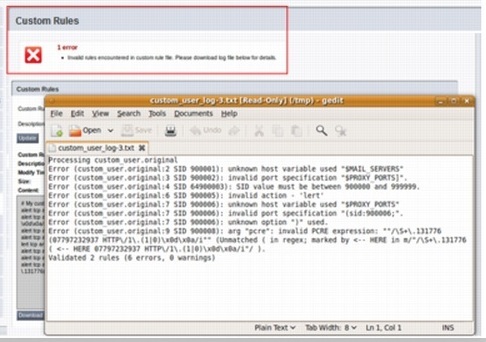
To view a description of the errors in the file, click Download Log.
If there are any format or syntax errors in your rules file, none of the rules in the file are loaded. Existing custom rules continue to be active when a file upload fails. Fix the errors and reload the rules file.
To delete a Custom Rule file, click Delete File.
Creating custom rule limitations
Custom rules must be legal rules.
Note
Not all options are supported now. Send feedback about the options available, or requests to support additional configurations in future releases, to csportal.fireeye.com.
Blocking
If an appliance or sensor is deployed inline, rules can be configured to block traffic. The drop keyword can be used in place of the alert keyword.
Variables
The $HOME_NET variable is configured with the homenet command. The default is "any".
The $PROXY_PORTS variable limits alerts based on the source or destination IP addresses existing on a predefined network. This variable is configured with the web-analysis ports command. This variable defines the ports at which the appliance or sensor will receive standard Web traffic. The default value is 80,8080. If your Web traffic is on a different port because of a network proxy server, set this variable to the proxy port using the web-analysis ports command, and then include that port designation as the destination port in your custom rules.
Other host and port variables can be created and used in the same file that contains the custom rules.
Limitations
In addition to enforcing standard syntax, the following limitations are set:
SID Range
The range for the SID is from 900000 to 999999.
msg field
The msg field contains only the name of the signature to be reported in the Web UI. This field has a maximum of 64 alphanumeric characters, dots, underscores, and hyphens.
Keywords
A subset of the available keywords is listed in the following table.
ack | dsize | id | pass | sid |
alert | fastpattern | ipopts | pcre | threshold |
ans1 | flags | ip_proto | priority | tos |
byte_jump | flowbits | isdataat | rawbytes | ttl |
byte_test | fragbits | itype | reference | window |
content | fragoffset | metadata | rev | within |
depth | ftpbounce | msg | rpc | |
distance | icmp_id | nocase | sameip | |
drop | icode | offset | seq |
Priority
The Network Security uses priorities to control the order of processing. The default is the lowest priority. A priority of over 100 must be assigned to make sure that a particular rule always starts before any others.
Traffic
The Network Security runs multiple signature-less Multivector Virtual Execution (MVX) engines to detect the latest threats. HTTP- and IRC-based traffic is the type of traffic primarily sent, so custom signatures for HTTP and IRC need to be deployed.
Performance
Custom signatures can affect the overall performance of the appliance or sensor and reduce the processing power available for dynamic threat detection. If possible, specify IP addresses and ports instead of using the default $HOME_NET variable “any.” Avoid rules that start too frequently, and rules that require evaluation of complex regular expressions.