The blocked-by-proxy detection feature enables the appliance to determine whether blocked traffic was blocked by the Web proxy or blocked by the appliance. Blocked-by-proxy detection is based on the components described in the following paragraphs:
Integration with a Web proxy
When the Network Security appliance detects an Infection Match or a Malware Callback event, it sends a traffic sample to the MVX engine for analysis. If blocked-by-proxy detection is enabled, the appliance can determine whether blocked traffic was blocked by the Web proxy (a blocked-by-proxy event) or blocked by the appliance. To detect blocked-by-proxy events, the appliance looks for block pages that the Web proxy serves to affected Web clients. The detection mechanism finds Web proxy block pages by matching an identifying text string that the Web proxy embeds in block pages.
Note
Blocked-by-proxy detection pertains to Infection Match and Malware Callback events only.
Integration with a Web proxy consists of enabling the blocked-by-proxy feature and configuring the Network Security appliance with the identifying text string. When blocked-by-proxy detection is configured and enabled, blocked traffic events are delivered in two modes: the Network Security appliance Web UI and Trellix event notification emails.
When flagged in the Web UI, the detailed view of alerts for blocked traffic associated with Infection Match and Malware Callback events shows whether the traffic was blocked by the Web proxy or by the Network Security appliance.
Alerts for blocked traffic associated with these types of events are also delivered by email notification. In these notifications, the subject line indicates whether the traffic was blocked by the Web proxy or blocked by the Network Security appliance.
Trellix event notifications for blocked-by-proxy events are sent based on how the appliance is configured to handle the event types detected. For any event type, you can configure the appliance to send notifications to one or more Web servers, remote syslog servers, or SNMP servers. For details about event types, notification methods, and notification configuration, see Configuring event notifications.
Badge for Blocked Traffic Events
When blocked-by-proxy detection is enabled, a blocked Infection Match or Malware Callback event is flagged in the Network Security appliance Web UI with a Blocked badge:

The Blocked and other alert badges are listed in the Badges column on the Alerts > Alerts > Hosts page (the Hosts view) and in the Alerts > Alerts > Alerts page (the Alerts view). The Hosts view lists malware alerts grouped by victim IP address and attack rule name. The Alerts view lists malware alerts grouped by attack name. For more information, see Viewing alerts and events using the Web UI.
Note
Blocked traffic events are flagged with the Blocked badge only when blocked-by-proxy detection is enabled.
The following example shows part of the Alerts > Alerts > Alerts page. Most of the alert entries shown in this example are for Malware Callback events with blocked traffic.

When an alert entry displays the Blocked badge, the alert details indicate whether traffic was blocked by the Web proxy or by the Network Security appliance.
Blocking Action Message in the Alert Details
If an entry in the Hosts or the Alerts view displays the Blocked badge, the alert details include a Blocking Action message. The message indicates whether the Infection Match or Malware Callback traffic was blocked by the Web proxy or by the Network Security appliance.
The following table shows the meaning of each type of Blocking Action message:
'Blocking Action' Message in the Alert Details | Type of Blocking Action |
|---|---|
| Blocked by the Web proxy |
| Blocked by the Network Security appliance |
For more information, see Viewing alerts with blocked traffic using the Web UI.
Note
The Blocking Action message appears in the alert details only if the alert entry is tagged with the Blocked badge. The Blocked badge does not appear in an alert entry if blocked-by-proxy detection is disabled.
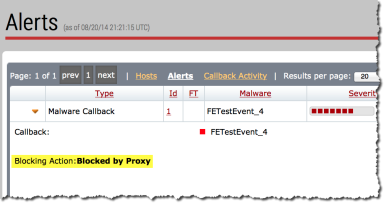
The following example shows part of the Alerts > Alerts > Alerts page. The first alert in the list is for a blocked Malware Callback event, and the alert entry has been expanded to show some of the detailed information. The Blocking Action message shows that the Malware Callback event was blocked by the Web proxy.
To provide context information regarding Blocked by Proxy labels, we provide the associated the HTTP response code and header as part of the proxy badge. (See the highlighted area below.)
Emailed notifications for blocked traffic events
When blocked-by-proxy detection is enabled, the Network Security appliance sends event notifications as configured for the appliance. For information about other event types and event notification methods, see Configuring event notifications.
Emailed notifications are sent to the email recipients specified in the Settings > Notifications page when it is expanded to show the email settings. The settings are located in the SMTP Recipient Listing section of the expanded page. For information about adding and deleting email recipients, see the Network Security System Administration Guide.
When the appliance sends an emailed notification of a blocked traffic event, the email subject line indicates whether the traffic was blocked by the Web proxy or by the Network Security appliance. The following table describes the default subject lines these notifications:
Type of Blocking Action | Default Subject Line |
|---|---|
Traffic for an Infection Match event or Malware Callback event was blocked by the Web proxy | BLOCKED‑BY‑PROXY |
Traffic for an Infection Match event or Malware Callback event was blocked by the Network Security appliance | NOT‑BLOCKED‑BY‑PROXY |
To customize emailed notifications of traffic-blocking events, you can configure custom subject lines. See Configuring blocked-by-proxy detection using the CLI and Configuring custom subject lines for emailed notifications using the CLI.
Maximum time to wait for confirmation of a blocked-by-proxy event
Depending on the deployment of your Network Security appliance and the profile of your network traffic, there might be a lag of several seconds between the time when a traffic sample is submitted and the time when the blocking type can be determined. An accurate determination requires enough time for MVX analysis to complete and for blocking by the Web proxy to be confirmed or ruled out.
The default wait time allows sufficient time for accurate blocked-by-proxy detection in a typical deployment. However, you can override the default wait time and specify the wait time that best suits your network traffic. See Configuring blocked-by-proxy detection using the CLI and Configuring a custom wait time for blocked-by-proxy detection using the CLI.