The NS3600 Sensor requires a license to activate the baseline throughput of 1 Gbps. Additional license is required to increase the throughput from 1 Gbps to 3 Gbps or 5 Gbps. The license is provided as a .zip or .jar file.
Note
You must first purchase a license to enable traffic inspection in the NS3600 Sensor. To obtain a license, contact the Sales team.
You can upload the license from the Licenses page in the Manager. In the Manager, select Manager → <Admin Domain Name> → Setup → Licenses.
The following details are displayed on the System tab:
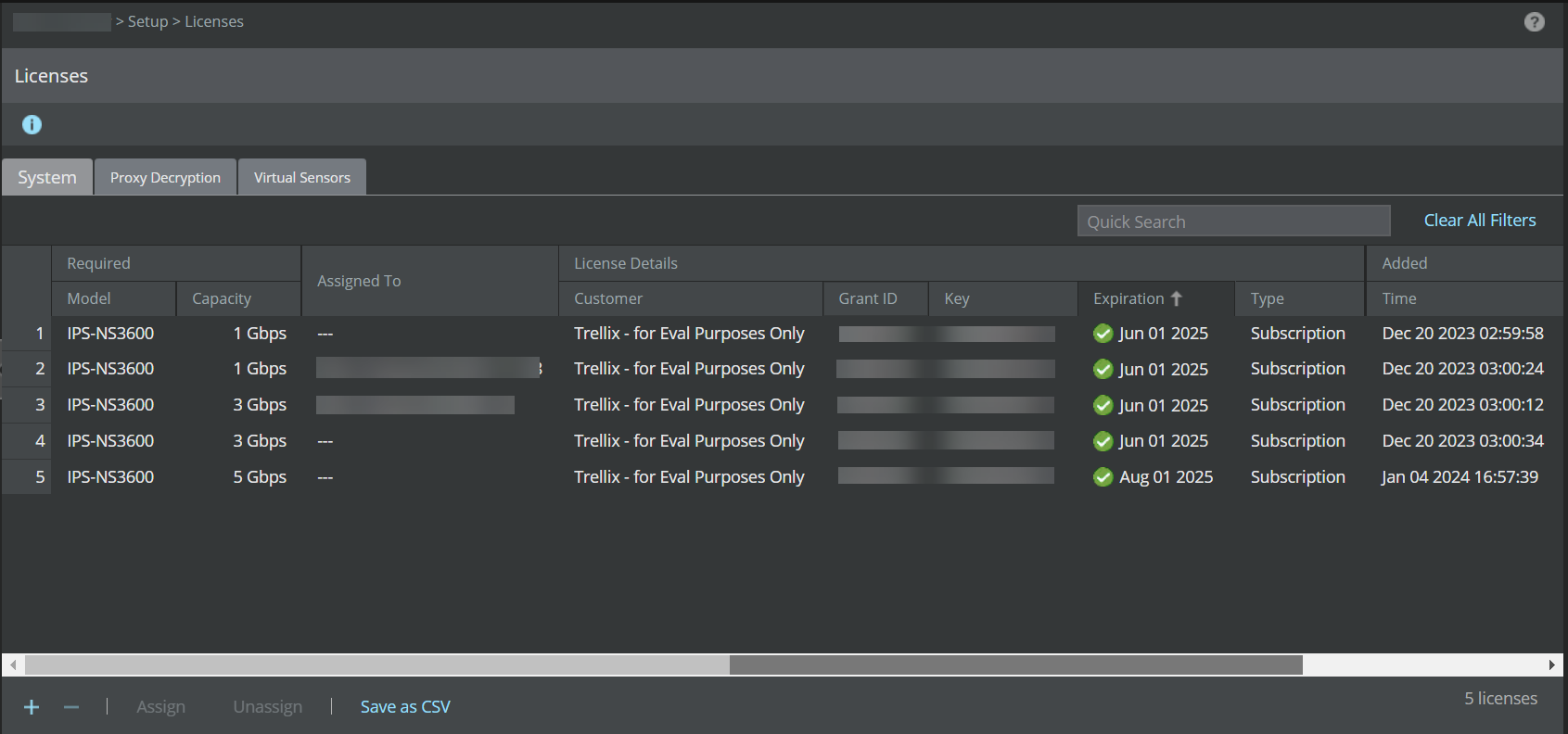
Option | Definition |
|---|---|
Required | Model – Sensor model compatible with the license Capacity – Throughput limit for the license |
Assigned To | Name of the Sensor assigned to the license |
License Details | Customer – The customer for whom the license file was generated Grant ID – Trellix Grant ID of the corresponding customer Key – License key number of the customer. Expiration – Applicable only for demo and subscription licenses
Type – Displays if the license is Perpetual, Subscription, or Evaluation (Demo) type. |
Added | Time – Date in <mm-yy> format, and time when the license was added By – Name of the user who added the license |
Comments | Enables you to add your comment per license file that is imported. Double-click in the Comment field and enter your comment. Click outside this field and your comment is automatically saved. |
.png)
.png)
.png)
The following actions can be performed on the System tab: